
Bone Selection and Visible Check in the FACEIT Aimbot
Separate the aim point from visibility filtering and understand what is actually documented for the FACEIT Version.
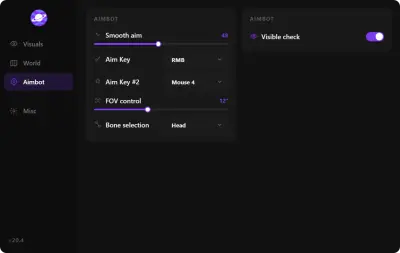
Bone selection and visible check answer different questions. Bone selection chooses where on an enemy model the aimbot aims. Visible check limits aiming to enemies who are visible. Both are documented for CS2 Faceit Cheats, alongside smooth aim and FOV control.
Choosing a point on the model
In this context, a bone is a point associated with the character model. Head and body are useful examples of different aim areas. The product summary does not enumerate the available bones, so those examples should not be read as a complete menu list or confirmation of a specific option label.
Choosing an aim point is not the same as setting how far the search area extends around the crosshair. That is the role of FOV control. Keeping these concepts separate makes the feature list easier to understand before you open any menu.
What visible check changes
Visible check restricts aiming to enemies that are visible rather than hidden behind walls or objects. It is an aim-selection condition. It does not establish how visibility is calculated, whether every map object is handled identically or how frequently the condition is evaluated.
For a simple example, consider an enemy near the crosshair who moves behind cover. The FOV describes the search area; visible check concerns whether the enemy meets the visibility condition. Bone selection still concerns the point on the model. Each control has a separate job.
Visual information has a different role
Player ESP, skeleton, box, health and radar belong to the information group. A player being marked by a visual tool does not itself describe an aimbot selection rule. The visuals overview covers what these displays show without treating them as aim settings.
Keep expectations within the feature list
The summary does not document prediction, recoil controls, distance caps or a list of selectable bones. It also does not provide a recommended combination of FOV and visibility settings. A useful configuration begins with the controls actually available in the product instructions.
Review the complete FACEIT Version for the feature groups and Windows requirements. If the exact selectable bones matter to your purchase, ask support for the current list. That resolves the missing detail directly without relying on another product’s screenshot.